Which GPS Tracker Alerts Should You Enable?
Choose useful geofence, speeding, low-battery, disconnect, tamper, and trip alerts without creating notification overload.
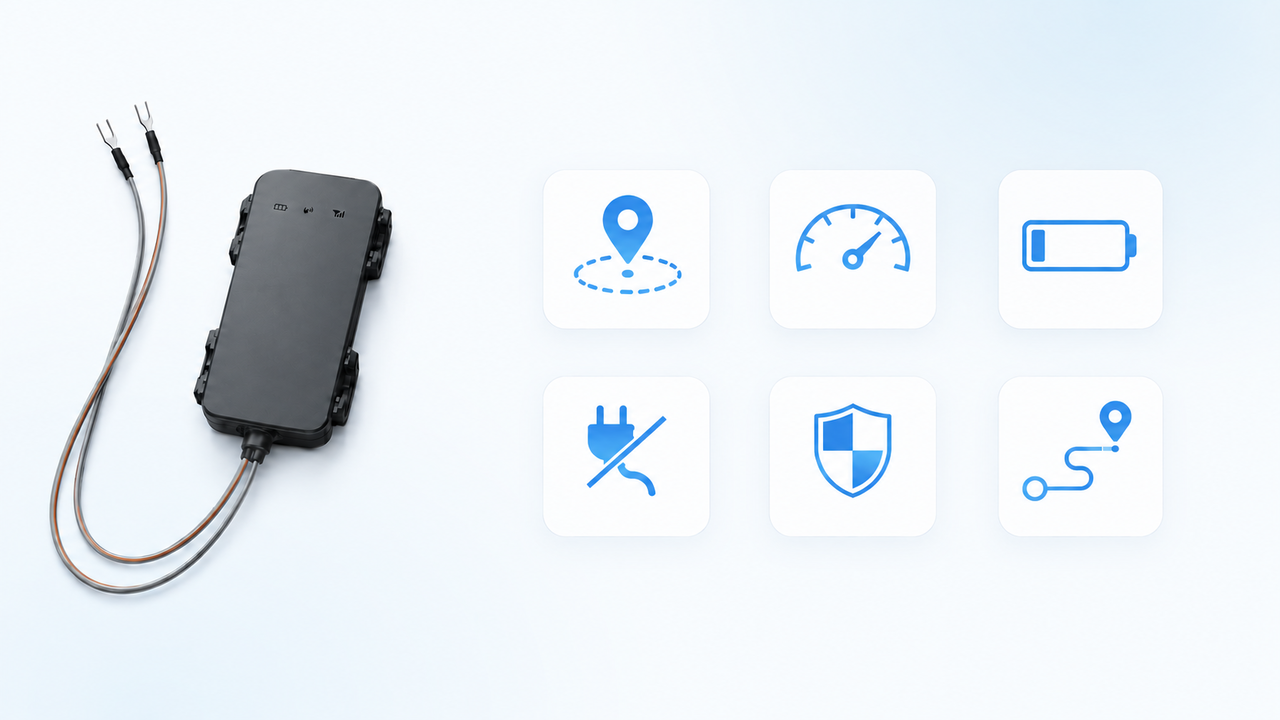
The best alert setup isn’t the one with every switch turned on. It’s the one that tells you about a small number of events you would actually respond to.
Start with a real question: What change would make you check the tracker now? Then enable the alert that answers it. Most options live in the device’s alert settings and depend on that tracker’s capabilities. Geofence alerts are configured separately.
Geofence alerts: when a place matters
A geofence alert tells you when a tracker enters or leaves an area you defined. In the map’s geofence editor, you can choose enter alerts, exit alerts, or both. Each saved geofence applies to every tracker on your account, not just one selected device, so consider which other trackers might cross it.
This is useful when the place is more important than the route. You might want to know that a vehicle has arrived at a regular destination, or that an asset has left its usual storage area. Avoid drawing geofences around every place you visit. A few meaningful areas produce notifications you can understand at a glance.
Geofence alerts depend on recorded positions. GPS conditions, reporting intervals, and mobile connectivity can affect when an entry or exit is recognized and delivered.
Speeding alerts: when a chosen limit matters
A speeding alert compares a reported GPS speed with the limit you set in the device’s alert settings. ShieldGPS only shows this control when the tracker’s configured capabilities support speed alerts.
Choose a threshold connected to a real need, not a number likely to be crossed during ordinary driving. The system spaces repeated speeding alerts rather than sending one for every position above the threshold, but a limit that is too low can still become noisy. Reported GPS speed is useful context, not proof of a traffic violation.
Low-battery alerts: when charging needs attention
Enable low-battery alerts for a portable or battery-powered tracker you need to recharge. ShieldGPS currently creates this alert when a supported tracker reports a battery level below 10%, and it limits repeat low-battery alerts to about once per day.
This option only appears for tracker models configured to report usable battery levels. It is not relevant to every hard-wired or plug-in model, and a tracker that cannot communicate cannot send a fresh battery reading.
Disconnect alerts: when external power is removed
On supported wired or plug-in trackers, a disconnect alert means the device reported that its external power connection was cut or removed. It does not mean every temporary loss of GPS or mobile service will create a disconnect alert.
Turn this on when an unexpected power disconnection is something you would investigate. Availability depends on the tracker model and its ability to report a power-disconnect event.
Tamper alerts: when the hardware can detect it
A tamper alert is created when a supported tracker reports its tamper or disassembly event. This is a hardware-specific capability, so the setting is only shown for models configured to provide that signal.
It can be useful when physical interference with the tracker matters, but it should not be treated as a general movement alert or a guarantee that every kind of interference will be detected.
Trip alerts: when a journey summary is useful
A completed-trip alert tells you after ShieldGPS has recognized and processed a meaningful trip. It is a useful choice when you care about completed journeys but do not need to follow each position live.
Trip alerts are available on trackers with trip support. Very short or low-quality movement may be discarded instead of becoming a completed trip, so you should not expect a notification for every brief movement or stop.
A quieter starting setup
If you are unsure, begin with one or two alerts tied to the tracked item:
- For an asset that usually stays put, start with one carefully placed geofence and, if supported, disconnect or tamper alerts.
- For a rechargeable tracker, add low battery so charging is less likely to become a surprise.
- For a regularly driven vehicle, choose either a meaningful speed threshold or completed-trip alerts based on what you plan to review.
Alert settings decide which events create notifications. Your account’s notification settings decide how they are delivered. Push depends on a supported, registered phone or browser; email can be enabled separately; and SMS is available only when the account, plan, and tracker are eligible and quota remains.
Live with the setup for a week, then turn off anything you routinely dismiss. An alert earns its place when you know what you will do after receiving it.