Your Tracking Data, Ready to Take With You
Learn how to export ShieldGPS location history as a CSV, choose the right dates, and work with recorded tracker data in a spreadsheet.

Your tracking data should be useful outside ShieldGPS too. When you want to sort a few days of stops, compare timestamps, or keep a working copy, you can export a tracker’s recorded location history as a CSV file and open it in a spreadsheet.
The export is a copy of the recorded data for one tracker and one period. It doesn’t remove anything from ShieldGPS or change what you see in the dashboard.
How to create a location-history export
Open the tracker in the ShieldGPS dashboard, then choose Data Exports from its Device Options. This option is available while the tracker is active, or while cancellation is pending, and it still has a current service plan.
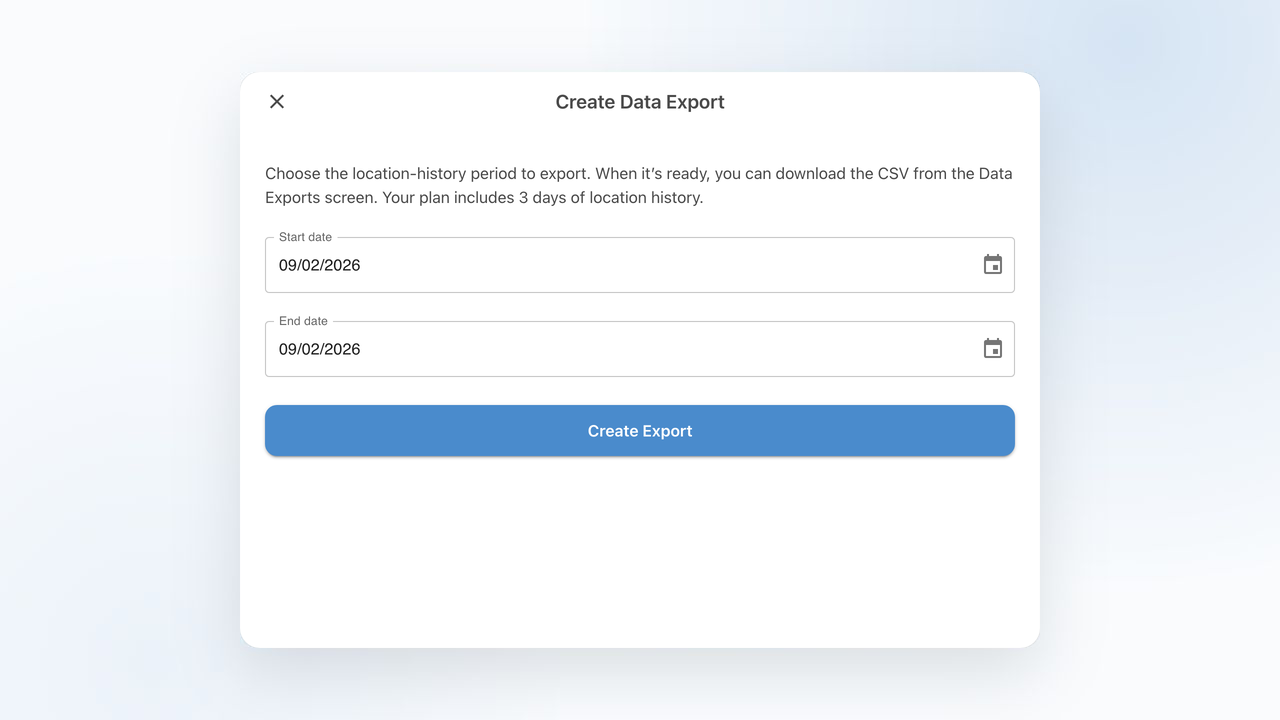
Select Create Export, then choose a start date and end date. Both dates are included. The dates follow your local calendar, so a request from August 1 through August 3 covers those three calendar dates. If you include today, the export ends at the time you submit the request rather than including hours that haven’t happened yet.
A single request can cover no more than 31 calendar dates. For example, July 1 through July 31 is valid. July 1 through August 1 covers 32 calendar dates, so it needs to be split into two exports.
Your service plan also controls how far back you can start. The creation screen shows the location-history period included with the tracker’s plan, or says when the plan has no location-history access limit. Dates outside the available period can’t be exported.
What happens after you request it
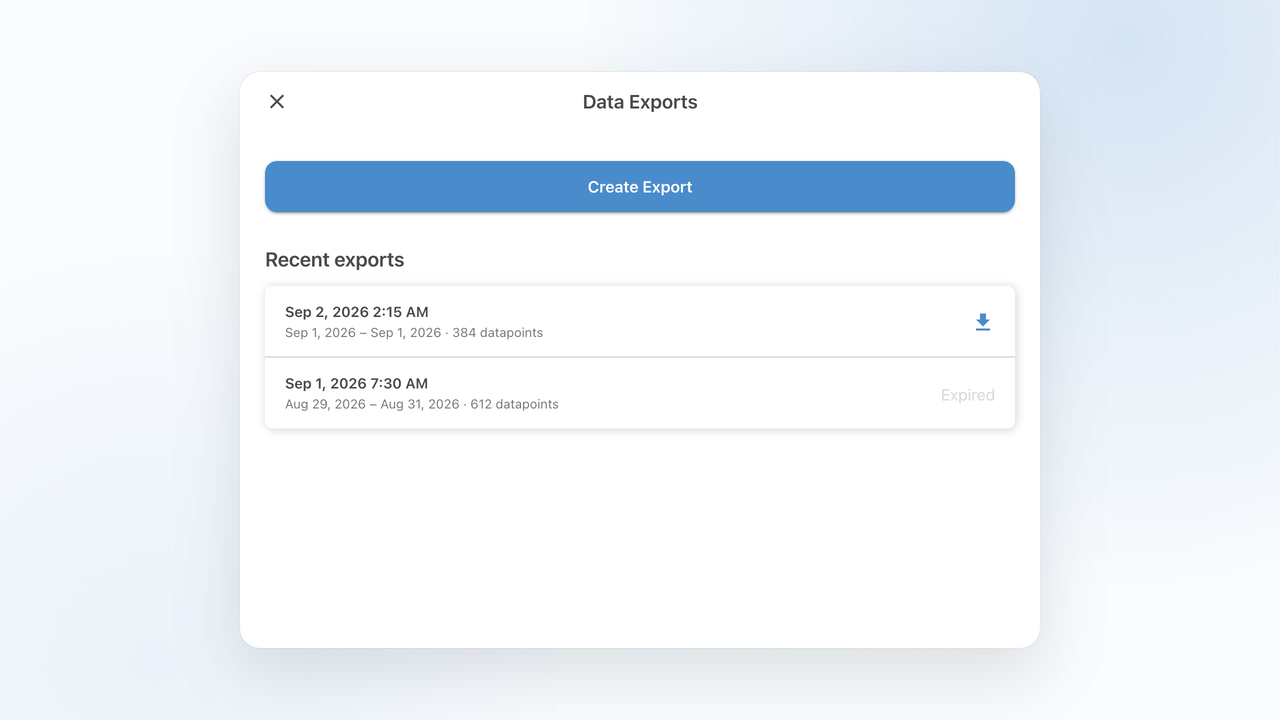
ShieldGPS prepares the file in the background. Return to Data Exports to see its status. A preparing indicator means the file is still being assembled. When it is complete, the row shows the number of exported datapoints and a download button. If generation fails, the row shows a failed status instead.
Only one export can be preparing for a particular tracker at a time. That keeps a large request from stacking up behind another one. Once the first export finishes or fails, you can submit another request. An export for one tracker doesn’t prevent you from requesting one for a different tracker.
Completed downloads remain available for seven days. After that, the row is marked Expired and the old download is no longer available. You can request a new copy if those dates are still within the history available on the current plan.
What’s inside the CSV
Each row represents one recorded location datapoint. The columns include:
- tracker name and IMEI;
- position time and received time in UTC;
- latitude and longitude;
- speed in kilometers per hour and heading in degrees; and
- battery percentage, GPS lock, and GPS type when those values were reported.
UTC timestamps give every row a consistent time reference. Most spreadsheet apps can convert them into a local time column for easier reading. Some fields may be blank when the tracker didn’t report that value.
The file contains recorded observations, not a continuous account of every moment. If the tracker could not calculate or send a position, the CSV does not invent one to fill the gap.
A few practical spreadsheet uses
Start with a copy of the original file, then use filters, formulas, or a pivot table on the copy. You might:
- sort by position time to review the sequence of recorded points;
- add local date and local time columns for the time zone you care about;
- group datapoints by day to compare how much recorded detail is present;
- compare position time with received time to find reports that arrived later; or
- filter rows by battery, GPS lock, or GPS type when investigating a gap or unusual reading.
Coordinates and timestamps can reveal sensitive movement patterns. Store the CSV somewhere private, share it only with people who are authorized to see the tracker’s history, and remove copies you no longer need.
For a quick question, export the smallest date range that answers it. The file will be faster to work with, and the relevant rows will be easier to find.