Choose a Map Icon That Matches Your Tracker
Learn how to choose a different map icon for each ShieldGPS tracker and see the same marker on live and location-history maps.
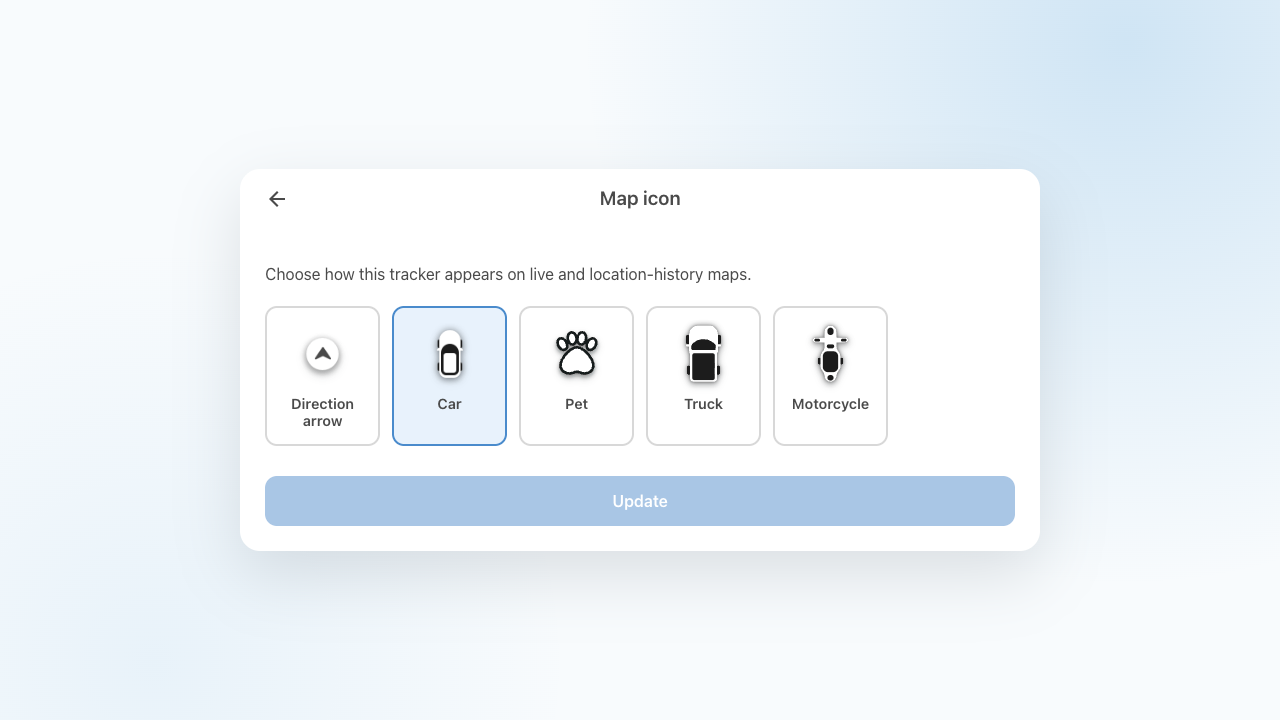
A clear tracker name does most of the identification work, but a familiar icon can help you find the right marker faster. If an account has several trackers, a car, truck, motorcycle, pet, or direction arrow gives each one a quick visual cue before you open its details.
ShieldGPS lets you choose an icon separately for each tracker. The setting changes how that tracker appears on the map. It does not change how the tracker reports positions, how often it updates, or which alerts it can send.
Available map icons
There are five choices:
| Icon | When it may be useful |
|---|---|
| Direction arrow | A neutral choice for a portable tracker or anything that does not fit another category. |
| Car | A straightforward marker for a car or other everyday road vehicle. |
| Pet | A distinct, upright marker for a pet tracker. |
| Truck | Helpful when separating a truck, van, or work vehicle from personal cars. |
| Motorcycle | A recognizable option for a motorcycle or scooter. |
You do not have to match the physical object literally. The best icon is the one you can recognize consistently. For example, a business with three similar vans might use Car for personal vehicles and Truck for work vehicles, even if the body style is not a perfect match.
Before you make a selection, ShieldGPS uses the tracker’s existing default. ATA trackers use the Direction arrow, while other models use Car.
More icons are on the way. If there’s a specific icon you’d like, let us know.
How to change a tracker’s icon
In the ShieldGPS dashboard:
- Open Devices.
- Select the tracker you want to change.
- Choose Map Icon on the tracker overview.
- Select one of the five icons.
- Choose Update.
The Map Icon option appears when the tracker has an active profile. If you expect to see it and do not, check that you opened the correct tracker and contact ShieldGPS support if you still need help.
What you will see on the map
Your saved choice is used on both the live map and location-history maps. When you update it, an open live map can switch to the new marker without waiting for the next position report. ShieldGPS also carries the choice into location history, including history that was already loaded in the current session.
The Direction arrow, Car, Truck, and Motorcycle icons turn with the heading reported for a position. The Pet icon stays upright. A marker’s direction is still based on tracker data, so it should be read alongside the position time and the rest of the map details rather than treated as a perfectly precise direction of travel.
Changing the icon does not alter past positions. It changes the marker used to display the tracker when you review those positions.
Keep a multi-tracker map easy to scan
A little consistency goes further than assigning a different icon at random:
- use one icon for each kind of vehicle or asset you track;
- keep tracker names specific, because names remain important when two trackers share an icon;
- choose the most visually distinct options for trackers you check most often; and
- review your choices when a tracker is moved to a different vehicle or purpose.
That gives you two useful signals at a glance: the icon helps you find the right kind of tracker, and the tracker name confirms which one it is.